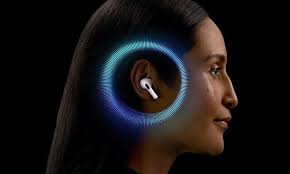
Now that iOS 18.1 is available to the general public, Apple’s new hearing aid feature is ready to go. The tool is one of three hearing health items the company announced alongside the iPhone 16 in September. Another of those, a “clinically validated” hearing test, is an essential part of being able to use the AirPods Pro 2 as a hearing aid. With an up-to-date iPhone and those earbuds, you can use the hearing assistance tool without going to the doctor or buying useless hearing aids.
Just take the five-minute test, and if the software determines you have mild to moderate hearing loss, you can instantly enable Apple’s FDA-approved hearing aid. Here’s a step-by-step guide on how to use it.
Update your iPhone and AirPods Pro 2
Before you can use Apple’s hearing aids, you’ll need to make sure your iPhone is updated to iOS 18.1 and your AirPods Pro 2 have the latest firmware (7B19).
If you don’t have both of these updates, none of the new Hearing Health features will appear in the AirPods settings or the Apple Health app. Also, you won’t be able to run a hearing test or use the Hearing Aid feature on the first-generation AirPods Pro.
You can check your current iOS version from the iPhone Settings menu. Scroll down to General and tap Software Update.
From here, you can see what version of iOS you’re running and whether you have any pending updates ready to download and install. Once again, you’re looking for iOS 18.1 here as this is the software version that provides the suite of Hearing Health features.
To check the firmware on your AirPods Pro 2, connect the earbuds to your iPhone and go to the Settings menu. Here, your AirPods Pro 2 should appear at the top of the list and tapping that option will take you to Settings. You can also get AirPods Pro 2 information from the Bluetooth menu by tapping the “i” icon next to the device name.
Once you’re in the AirPods Settings menu, scroll down to the bottom of the main screen. The last thing you’ll see is a lot of firmware information, including the current version of the AirPods Pro 2. If you see 7B19, you’re set. If not, your earbuds haven’t updated yet, but you can force them to do so instead of waiting for the over-the-air process to happen automatically.
To do this, connect the AirPods Pro 2 to your iPhone for at least 30 seconds and play music to confirm the connection is stable. Then put the earbuds back in the charging case and close the lid, so the AirPods Pro 2 are in range of the iPhone. Now check the Bluetooth settings, and if you see that the AirPods Pro 2 stay connected for more than 10 seconds in the charging case when the lid is closed, it means an update is in progress.
Take Apple’s hearing test
Once you’ve confirmed that your phone and earbuds have the necessary updates, you’ll need to take Apple’s hearing test before the hearing aid feature will appear. The only way to do this is to have your doctor upload an audiogram to the Apple Health app. Either way, you’ll need to show mild to moderate hearing loss (26-60 dBHL) for the Hearing Assistance section of the AirPods Pro 2 menu to be available to you.
Apple gives you two places to access your hearing tests, and both are easy to find. The first is in the AirPods menu, which you can find from either the main Settings menu or the Bluetooth menu. The Hearing Health section is prominently displayed on the main screen, just below the Noise Control options. In Hearing Health, the third item after Hearing Protection and Hearing Assistance will be Taking a Hearing Test, and it will appear in blue.
In the Health app, the quickest way to access hearing tests is to tap Browse on the menu on the main Summary screen. From there, choose Hearing with the blue ear icon and scroll down to Get More Information from Health. Here, you’ll see the option to take a hearing test with AirPods Pro 2.
Using the Hearing Aid Feature
After taking Apple’s hearing test, or uploading your results from your doctor in the Health app, you’ll be able to access the Hearing Assistance section of the Hearing Health feature in AirPods settings. The Hearing Aid feature lives here, where you can turn it on or off as needed. It’s worth noting that if your hearing test results meet the criteria for mild to moderate hearing loss, Apple will ask you if you want to set up Hearing Assistance right away.